Managing Devices
The Devices tab is where you manage your dive computers. You can add multiple devices and switch between them at any time.
Supported Devices
Dive Exporter works with BLE (Bluetooth Low Energy) dive computers. See Supported Devices for the full list of compatible devices and how to check compatibility in-app.
Scanning for Devices
To scan for nearby dive computers:
- Go to the Devices tab
- Tap the + button in the top-right corner
- Tap Start Scan
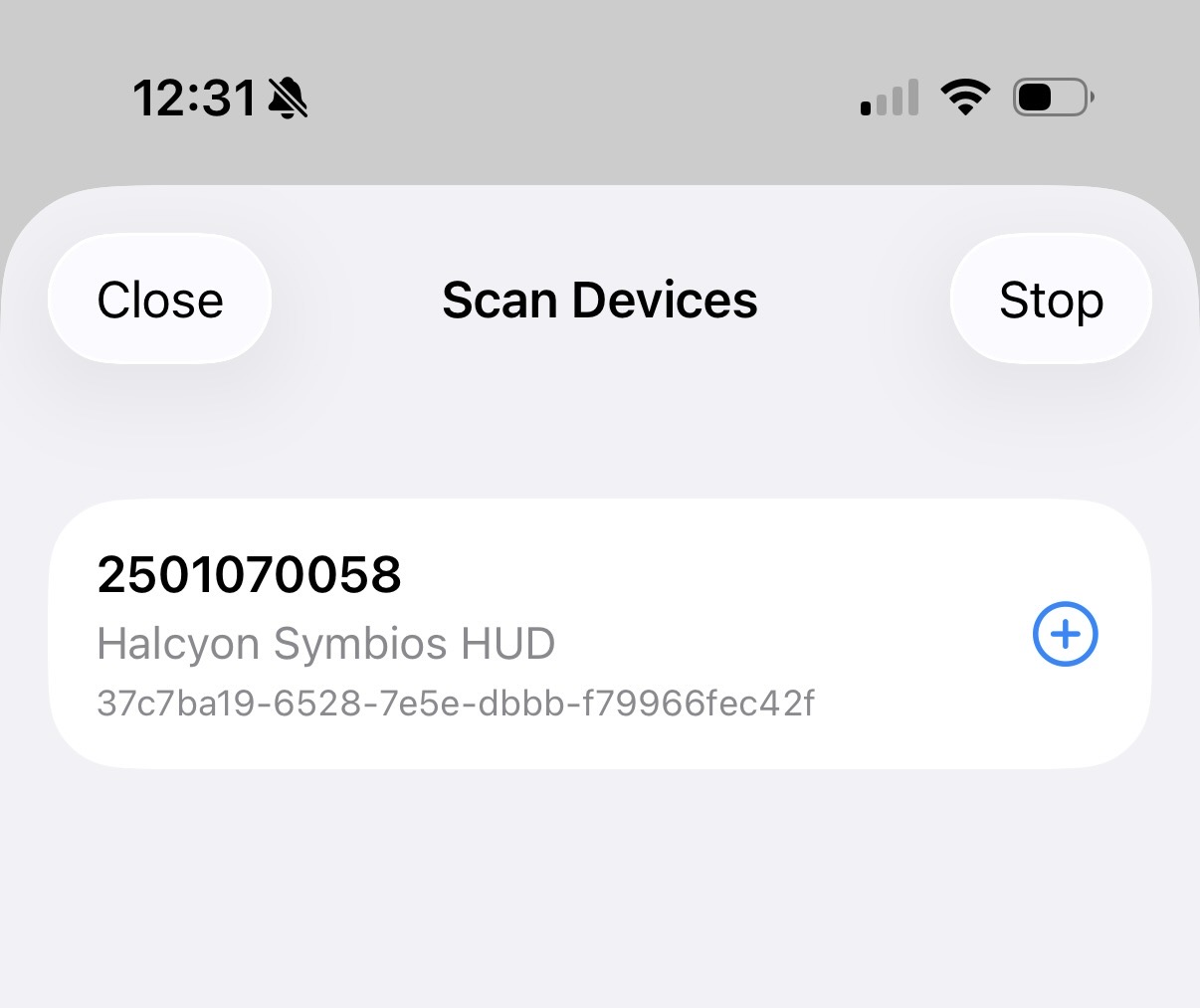
The app will scan for BLE dive computers in range. Discovered devices appear in a list showing the device name, vendor, and model. Tap the + button next to a device to add it to your list.
Adding a Device
From the scan results, tap the + button next to the device you want to add. The device will be added to your device list and a haptic confirmation will let you know it was successful.
Devices you’ve already added are marked with a green checkmark instead of the add button.
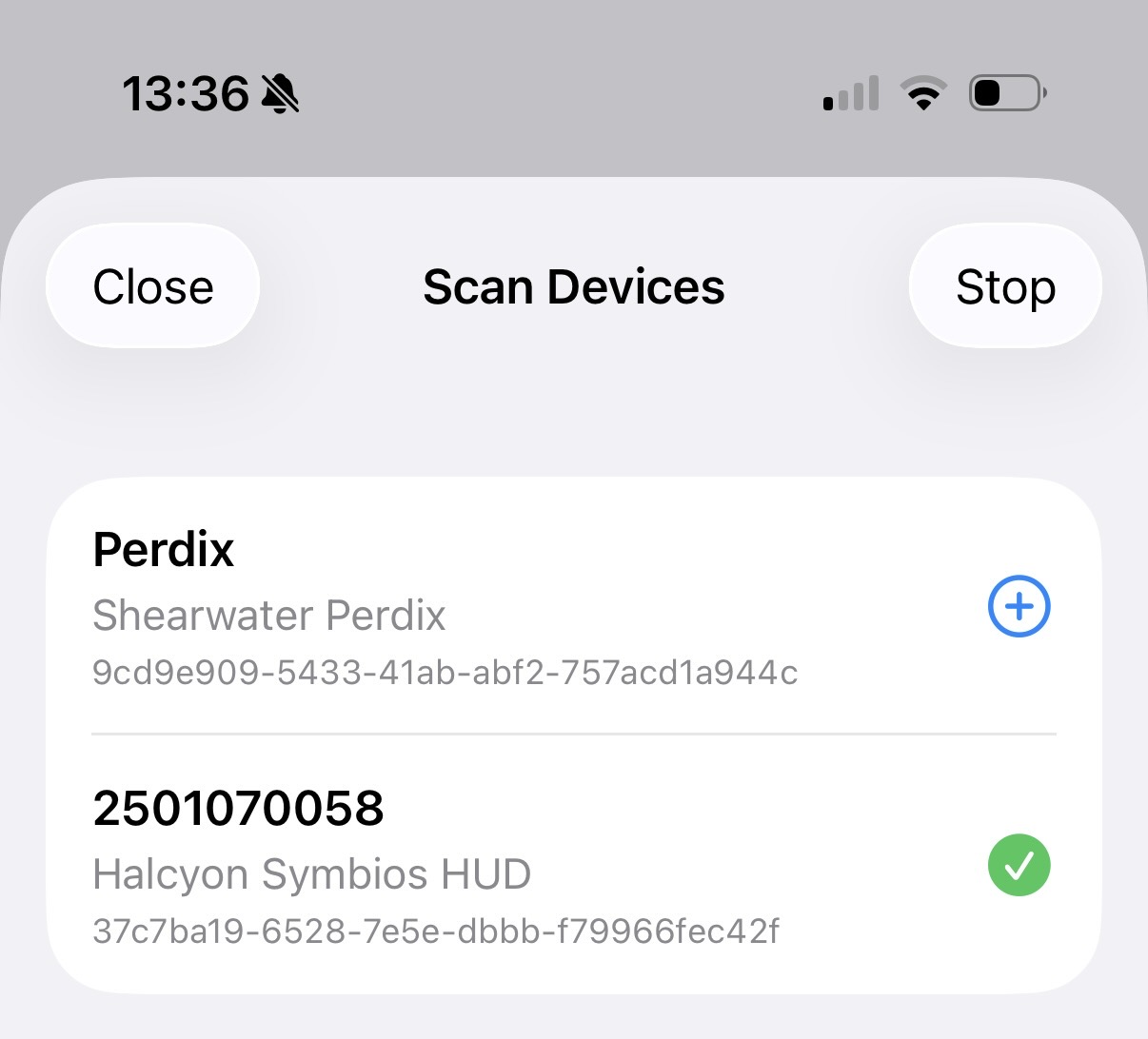
You can add multiple dive computers — useful if you dive with more than one device.
The Device List
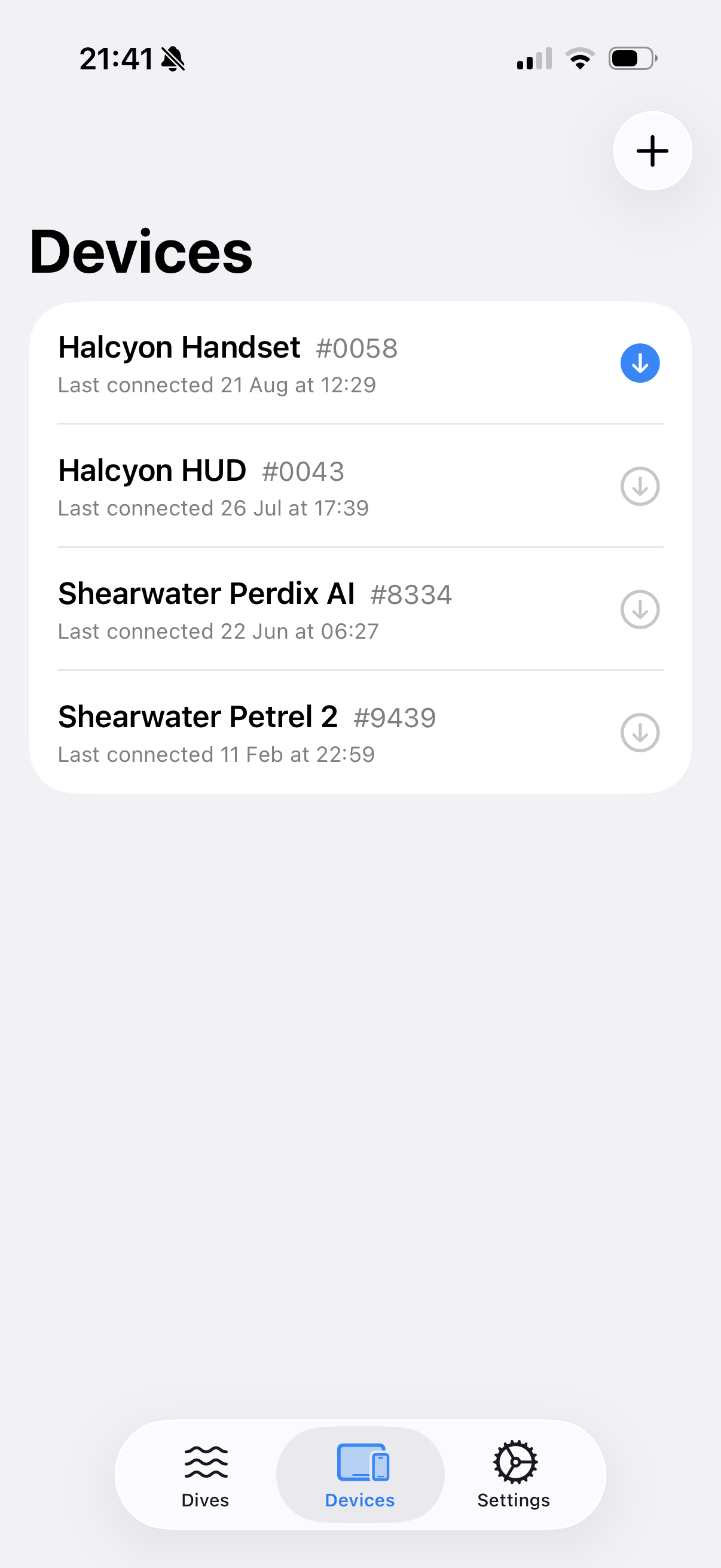
Each row in the device list shows the device name, the identifier that tells two of the same model apart, and the date it was last connected. A download glyph sits on the right of the row.
Starting a Download
Tap a device row to start a download straight away. The app picks the mode for you:
- Download New Dives when the device already has a fingerprint from a completed download
- Download All Dives when it does not
To choose the mode yourself, use the long press described in Device Actions.
Devices in Range
While the Devices tab is open, the app watches for dive computers that are advertising over Bluetooth. A device it detects gets a filled download glyph in the accent color, and every other device keeps a gray outline glyph.
This is a hint, not a gate. Most dive computers only advertise while they are awake and in Bluetooth mode, so a gray row still starts a download when you tap it.
Device Actions
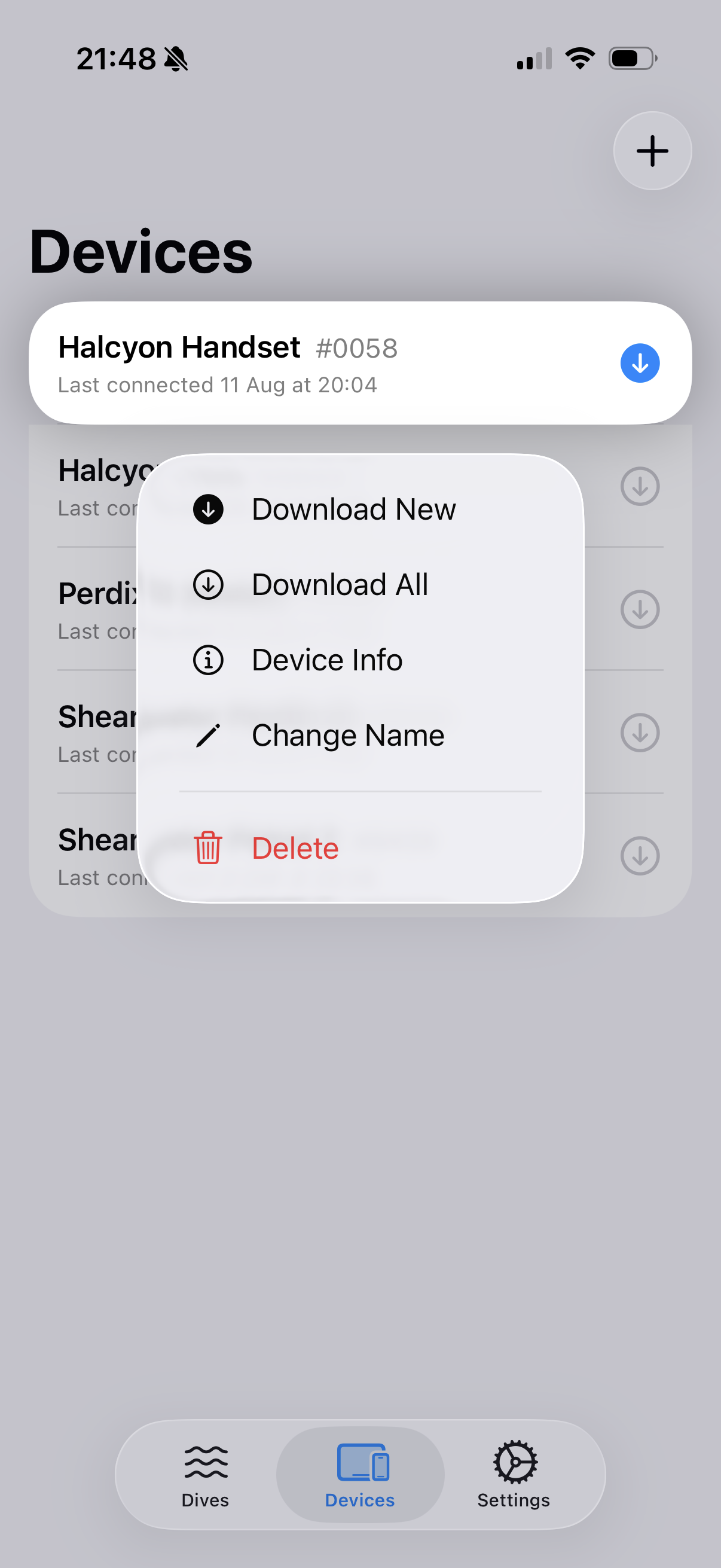
Long press a device row to reach everything else:
- Download New and Download All — Pick the download mode yourself. Download New appears only when the device has a fingerprint.
- Device Info — Open the Device Info sheet
- Change Name — Give the device your own name
- Delete — Remove the device and its dives
Device Info
Long press a device row and choose Device Info to open the device sheet. The sheet is read-only. Tap Done to close it.
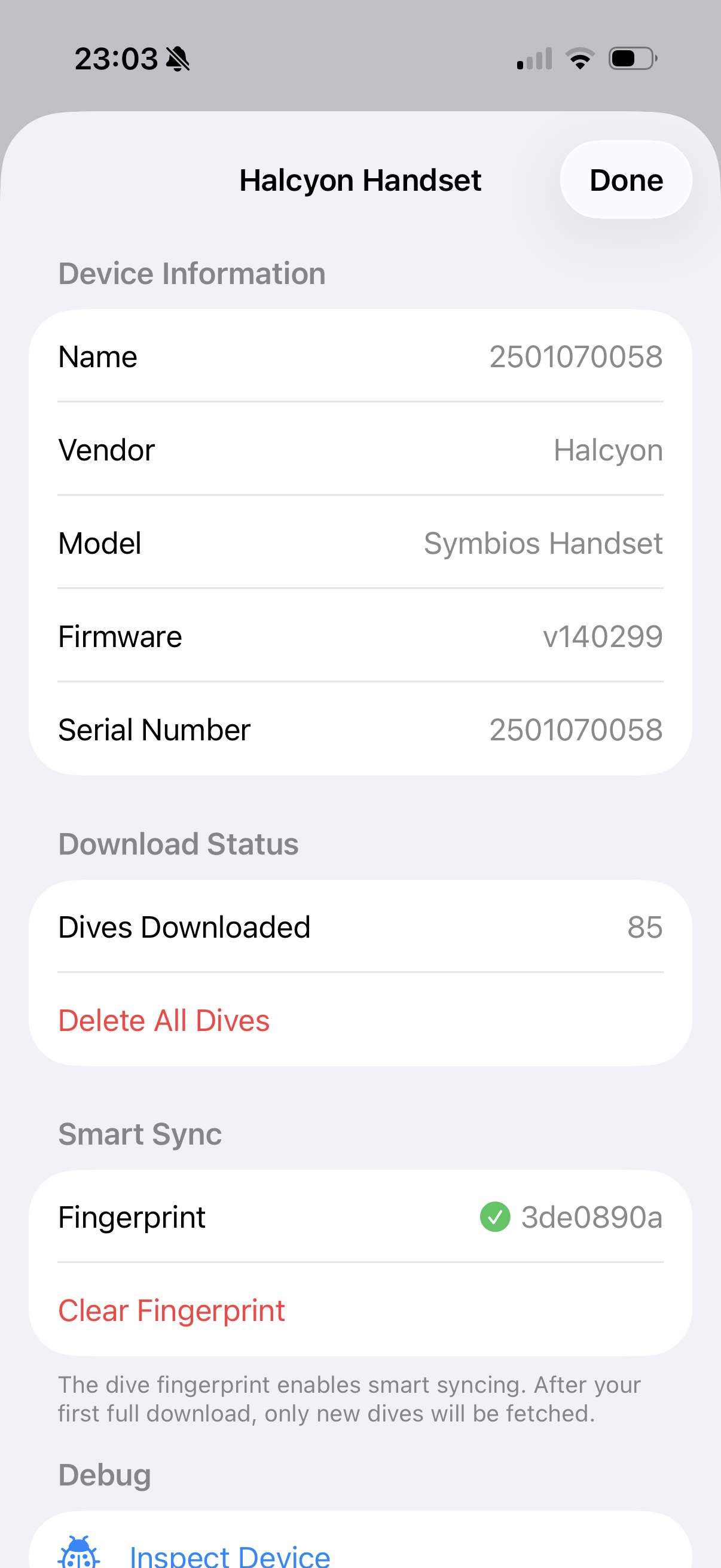
Device Information
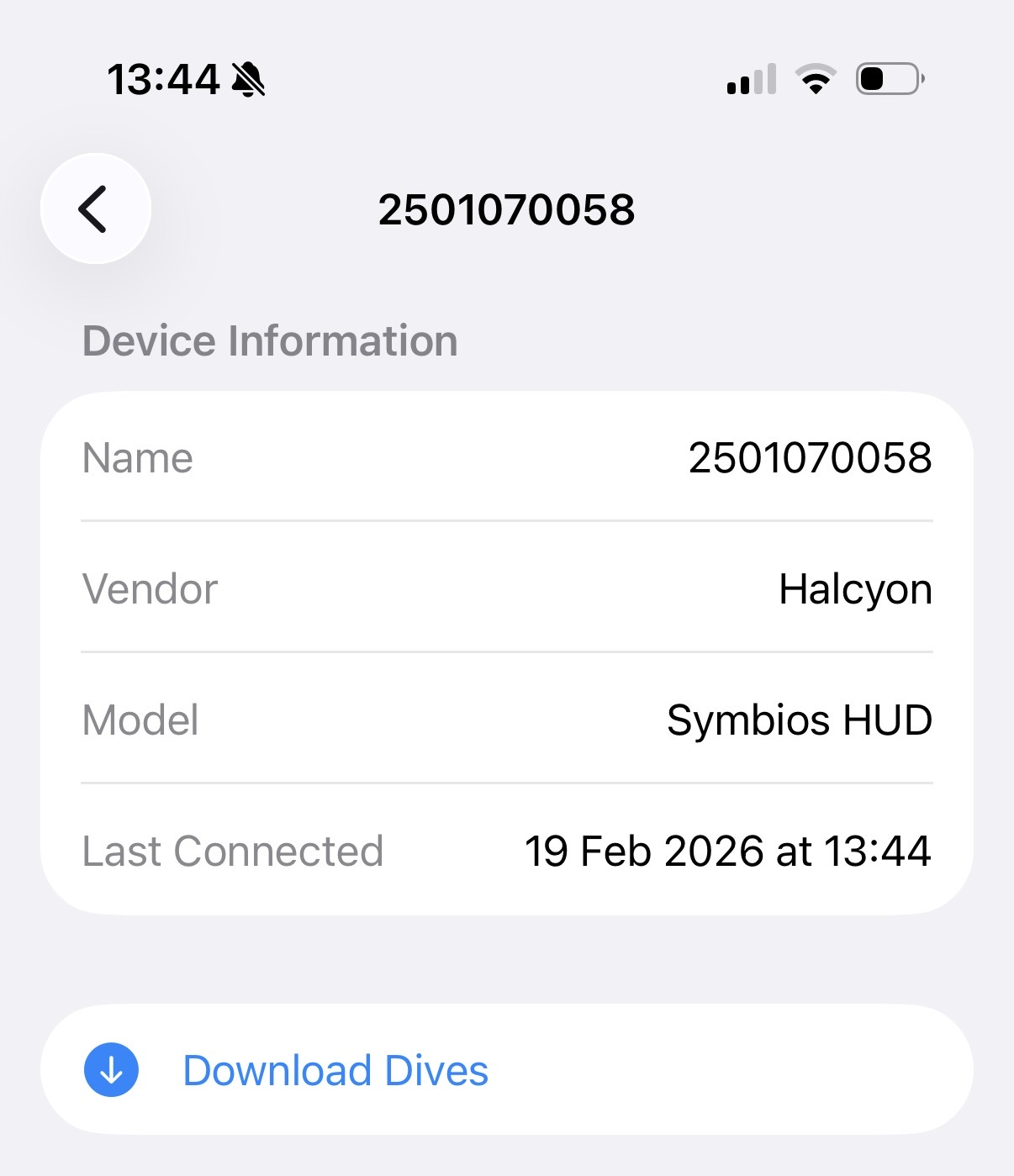
Before the first download, the app shows basic information available from the Bluetooth connection: name, vendor, and model.
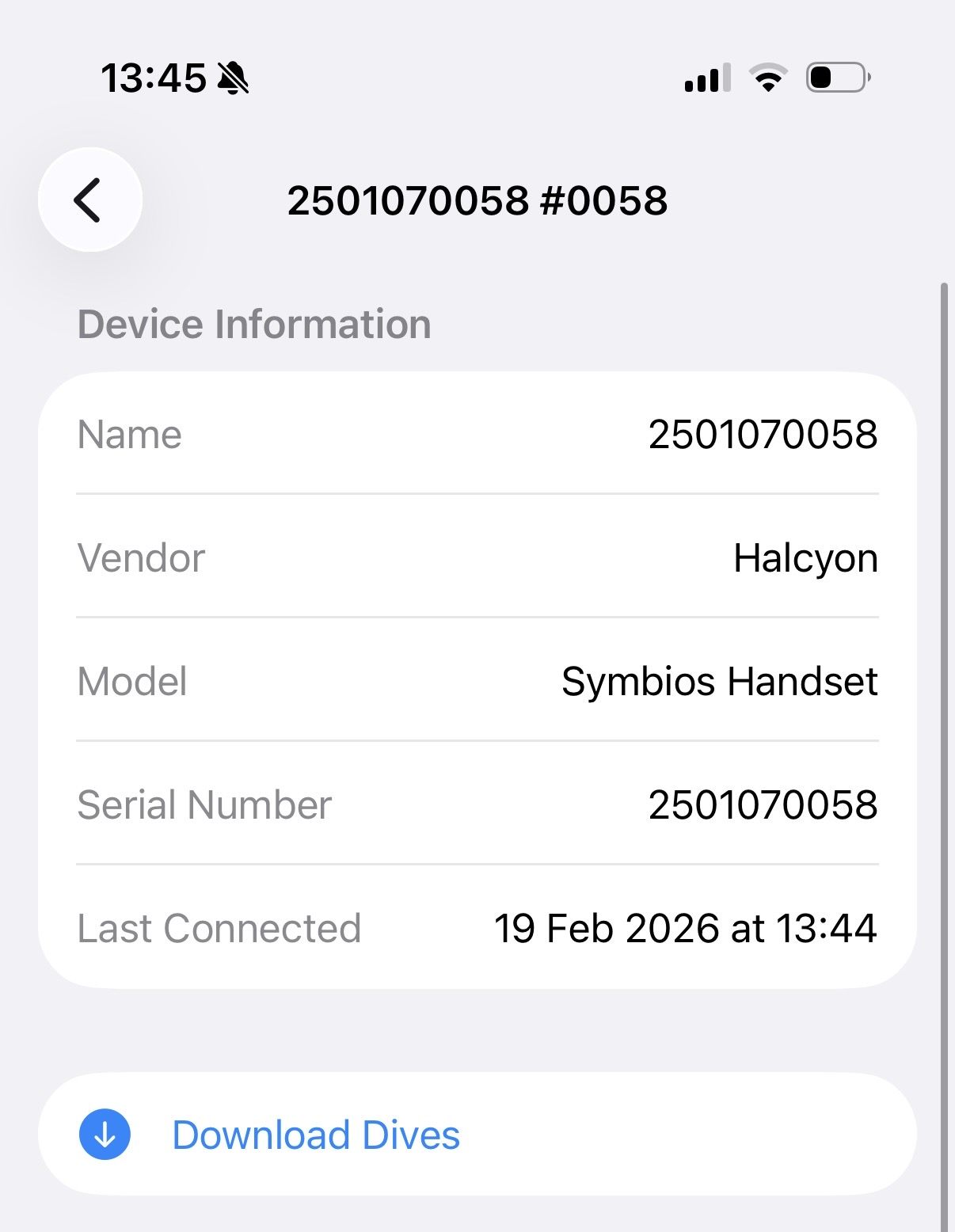
After the first download, the serial number and the firmware version are pulled from the dive computer, when available.
Download Status
Shows how many dives you have downloaded from this device. Delete All Dives removes them and keeps the device.
Smart Download
Shows whether a dive fingerprint is present for incremental syncing, and offers Clear Fingerprint once one is set. See Smart Download for details.
Deleting a Device
To remove a device, either swipe its row to the left and tap Delete, or long press the row and choose Delete.