Downloading Dives
Once you’ve added a device, you can download your dive data. Dive Exporter offers two download modes and a smart download feature to keep things efficient.
Starting a Download
Tap a device row in the Devices tab. The download starts straight away, in Download New Dives mode when the device already has a fingerprint, and in Download All Dives mode when it does not.
To pick the mode yourself, long press the device row and choose Download New or Download All.
Downloading All Dives
Download All Dives retrieves every dive stored on your dive computer. Use this mode:
- On your first sync with a new device
- After clearing the dive fingerprint
- When you want to ensure nothing is missed
Downloading New Dives
Download New Dives only retrieves dives recorded since your last sync. This is much faster than a full download and is the recommended mode for regular use.
This option is only available after you’ve completed at least one full download, which establishes a fingerprint for smart download.
Smart Download
Smart download uses a dive fingerprint to track which dives have already been downloaded. Here’s how it works:
- First download — No fingerprint exists, so the app downloads all dives and saves a fingerprint from the most recent dive
- Subsequent downloads — The app uses the saved fingerprint to identify where it left off, and only downloads dives recorded after that point
- Fingerprint management — You can view the fingerprint status and clear it from the Device Info sheet
Clearing the fingerprint forces a full re-download on the next sync.
Before a full download completes, the fingerprint is Absent and the status is shown in gray.
After a successful full download, the fingerprint turns Present with a green indicator, and a Clear Fingerprint option appears.
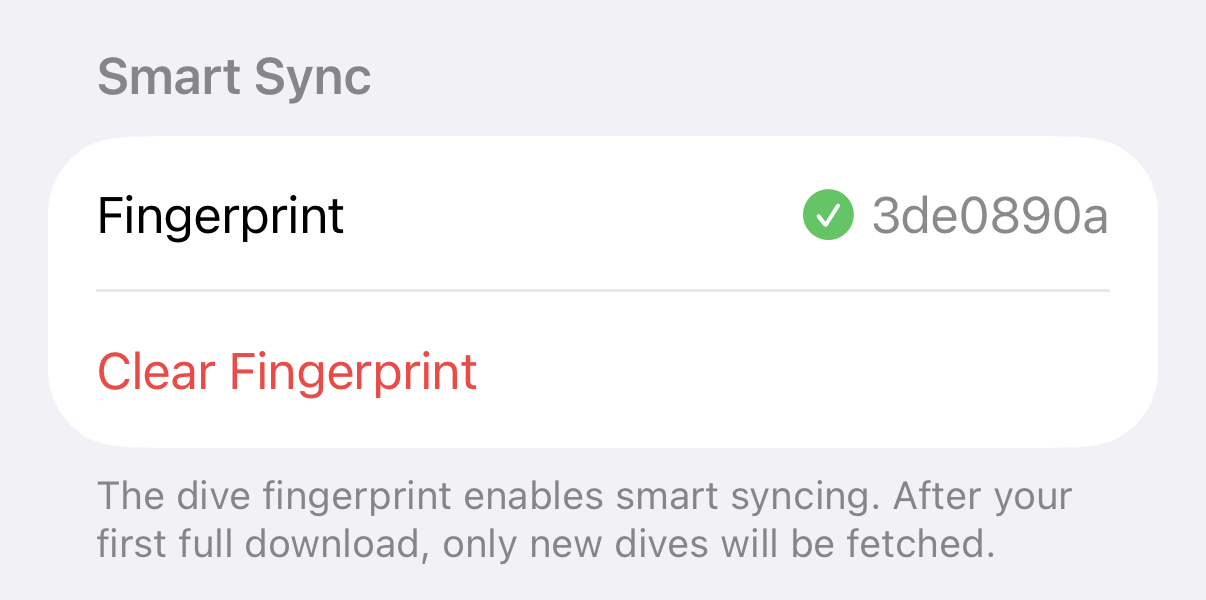
Tapping Clear Fingerprint resets the fingerprint, which means the next sync will perform a full download again. Your existing dives are not deleted — only the sync reference point is removed.
During the Download
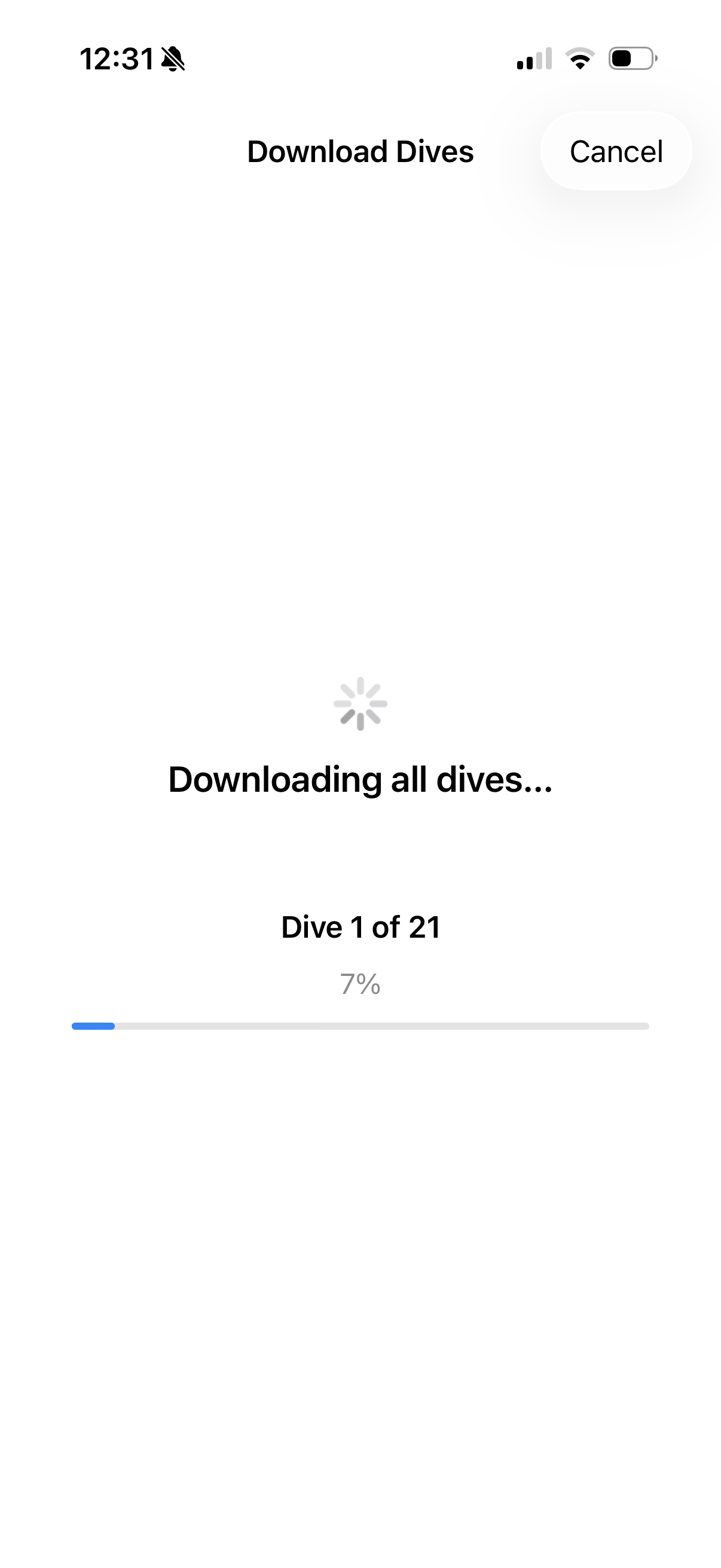
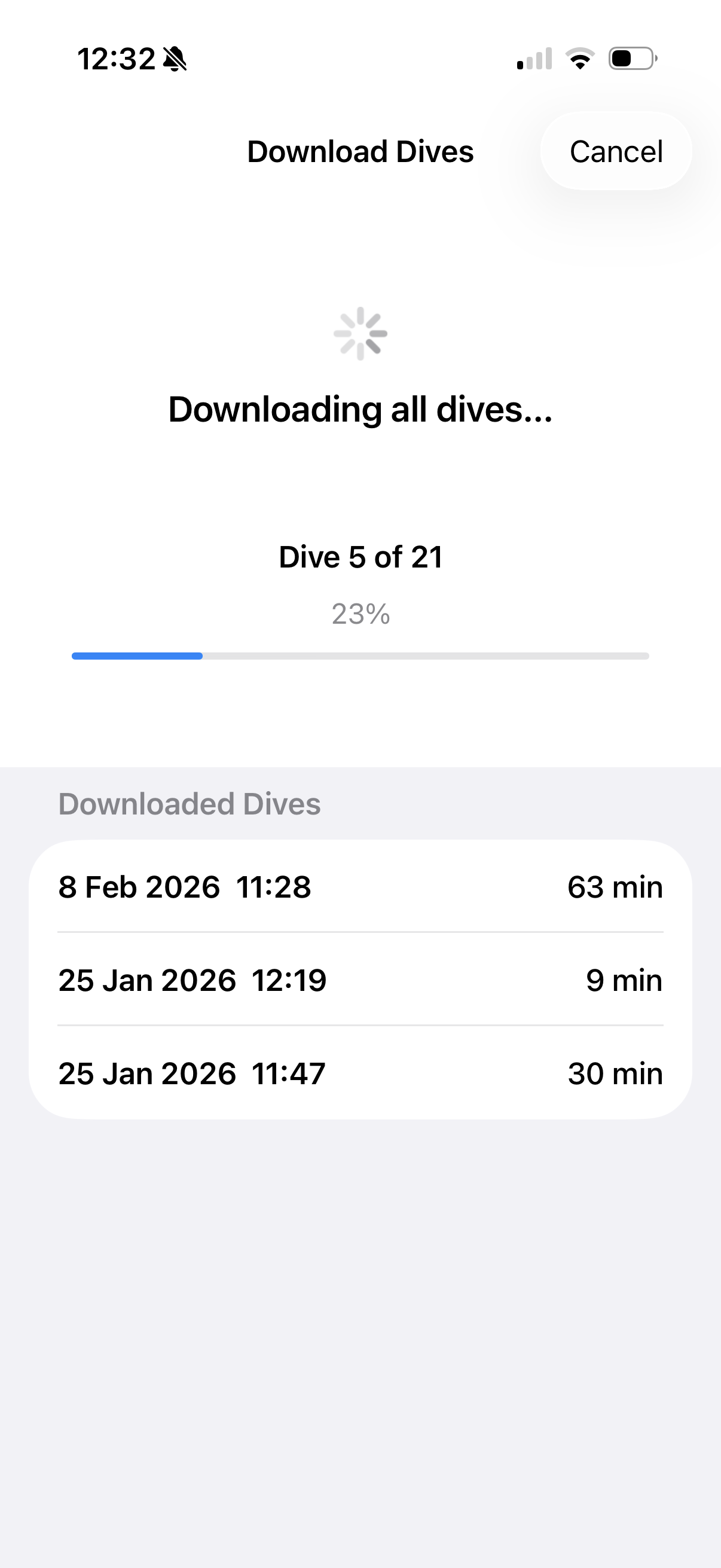
The app connects to your dive computer and shows the download progress with the current dive number and total count.
As dives are downloaded, they appear in a list below the progress indicator so you can see what’s being imported in real time.
Download Complete
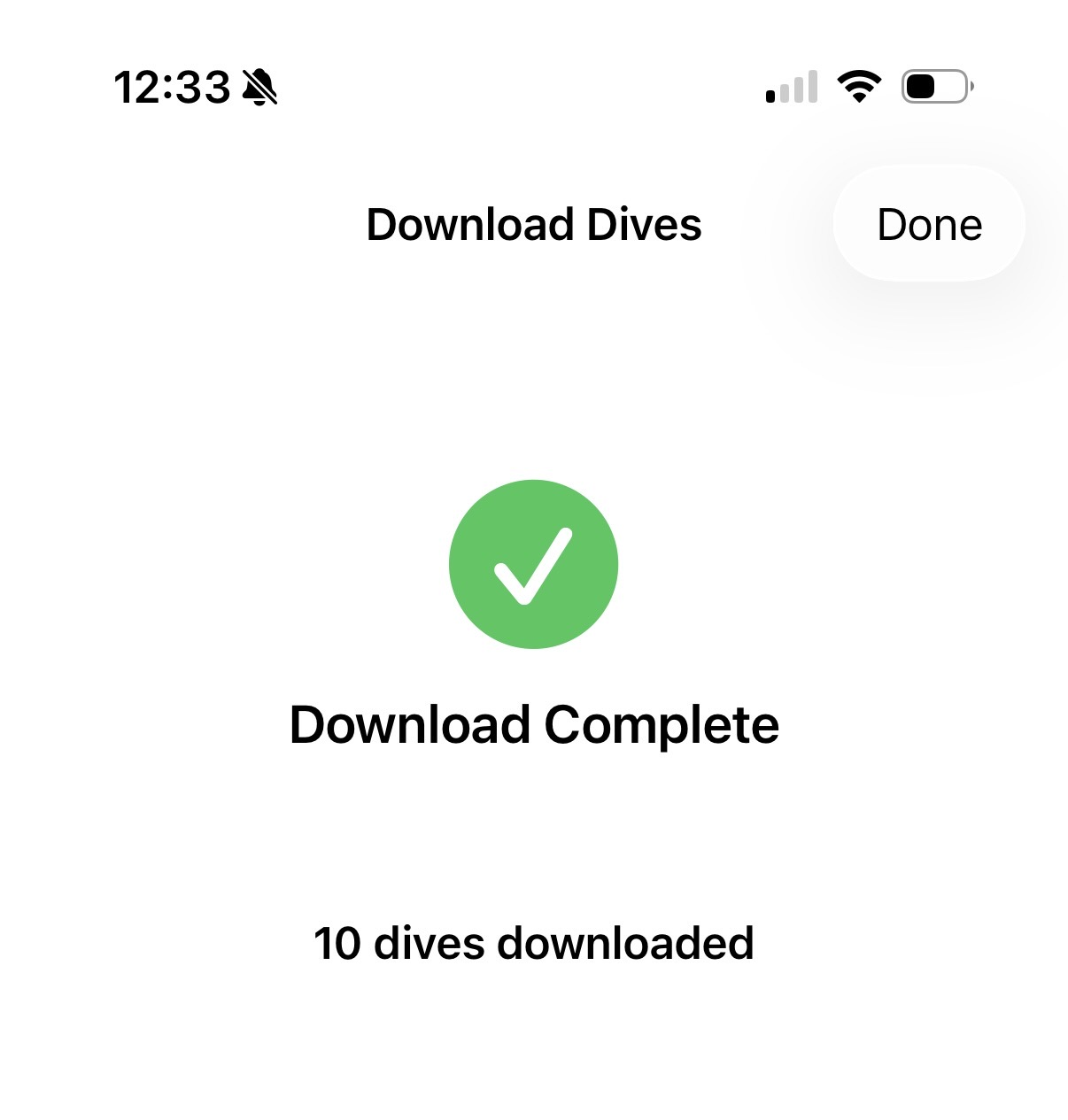
When all dives have been downloaded successfully, you’ll see a confirmation with the total number of new dives imported.
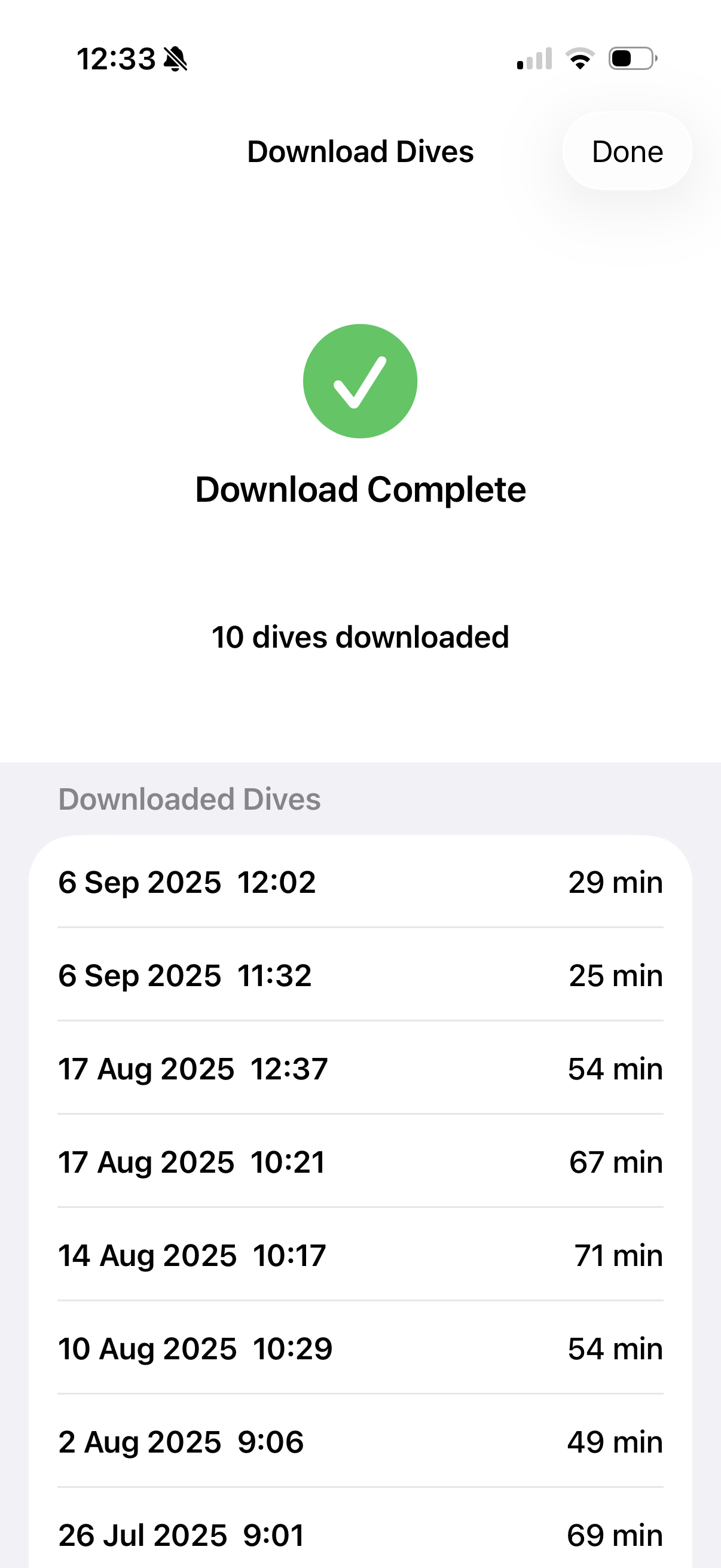
The app also stores a fingerprint of the most recent dive for Smart Download, so future downloads only fetch new dives.
Download Failed
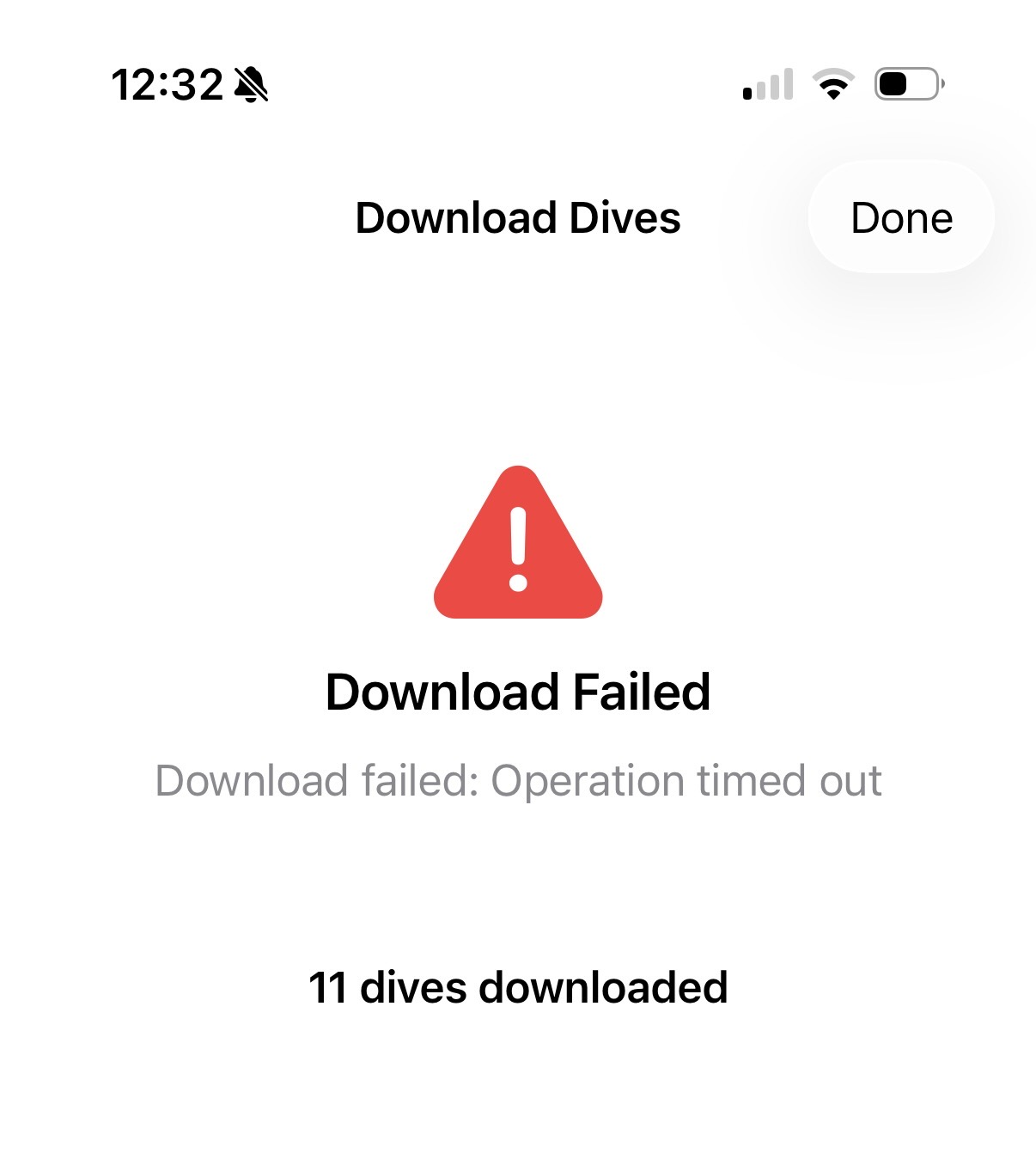
If the download fails (for example, due to a connection timeout), don’t worry — you can simply retry. Any dives that were already downloaded before the failure are preserved and won’t be lost.
Cancelling
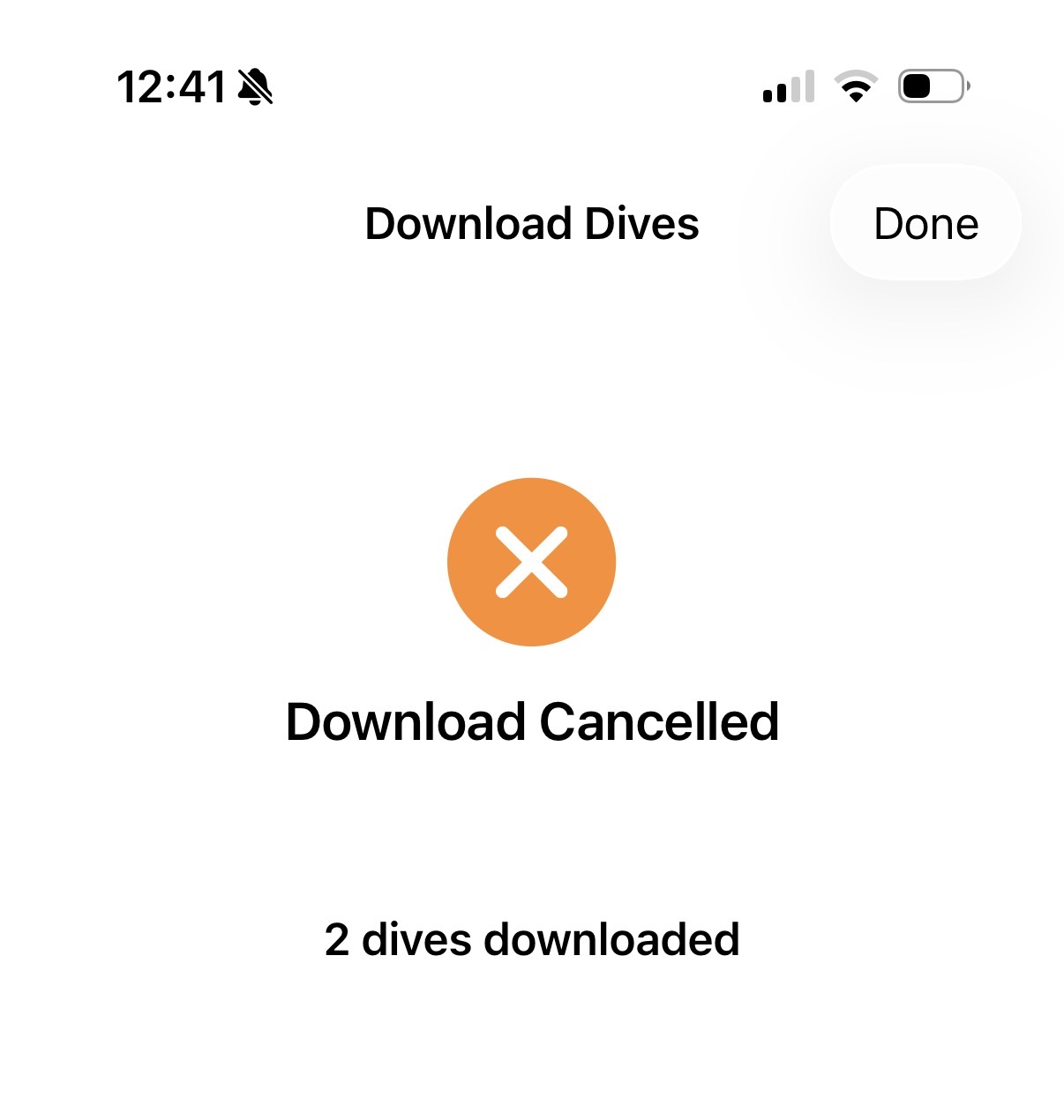
You can cancel a download at any time by tapping Cancel. Any dives already downloaded will be kept, but the fingerprint will not be updated — so next time you sync, those dives will be downloaded again along with any newer ones.