Viewing Dives
The Dives tab shows all your downloaded dives sorted by date, with the most recent dives at the top. Each entry in the list displays the dive number, date, duration, max depth, and the device it was downloaded from.
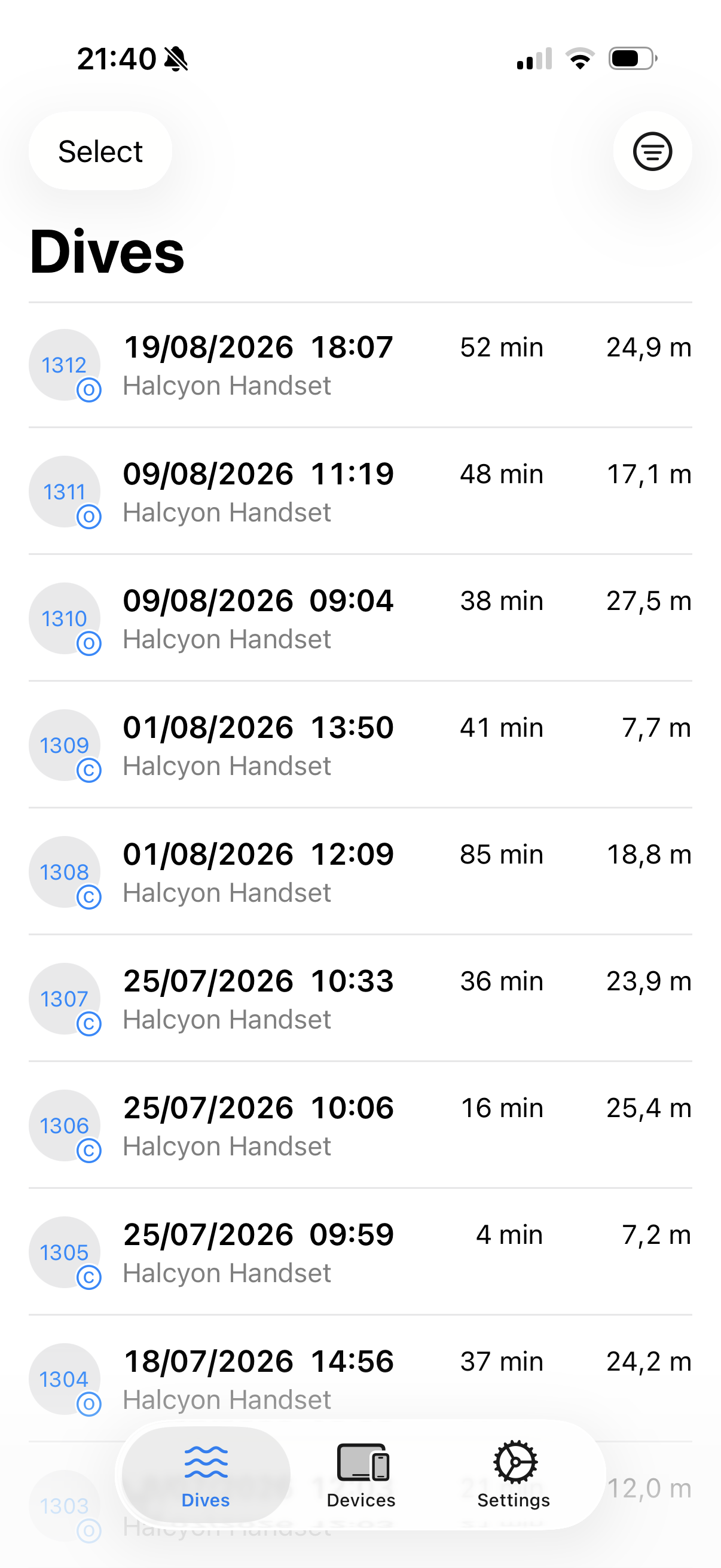
Tap Select in the top-left corner to enter selection mode, where you can export or delete several dives at once.
When you have more than one device, a filter button appears in the top-right corner. Use it to limit the list to the devices you choose.
Swipe a dive row to the left to delete it. The app asks you to confirm before it removes the dive.
Tap any dive to open the full dive detail view. The share icon in the top-right corner lets you export the dive as a UDDF file.
Summary
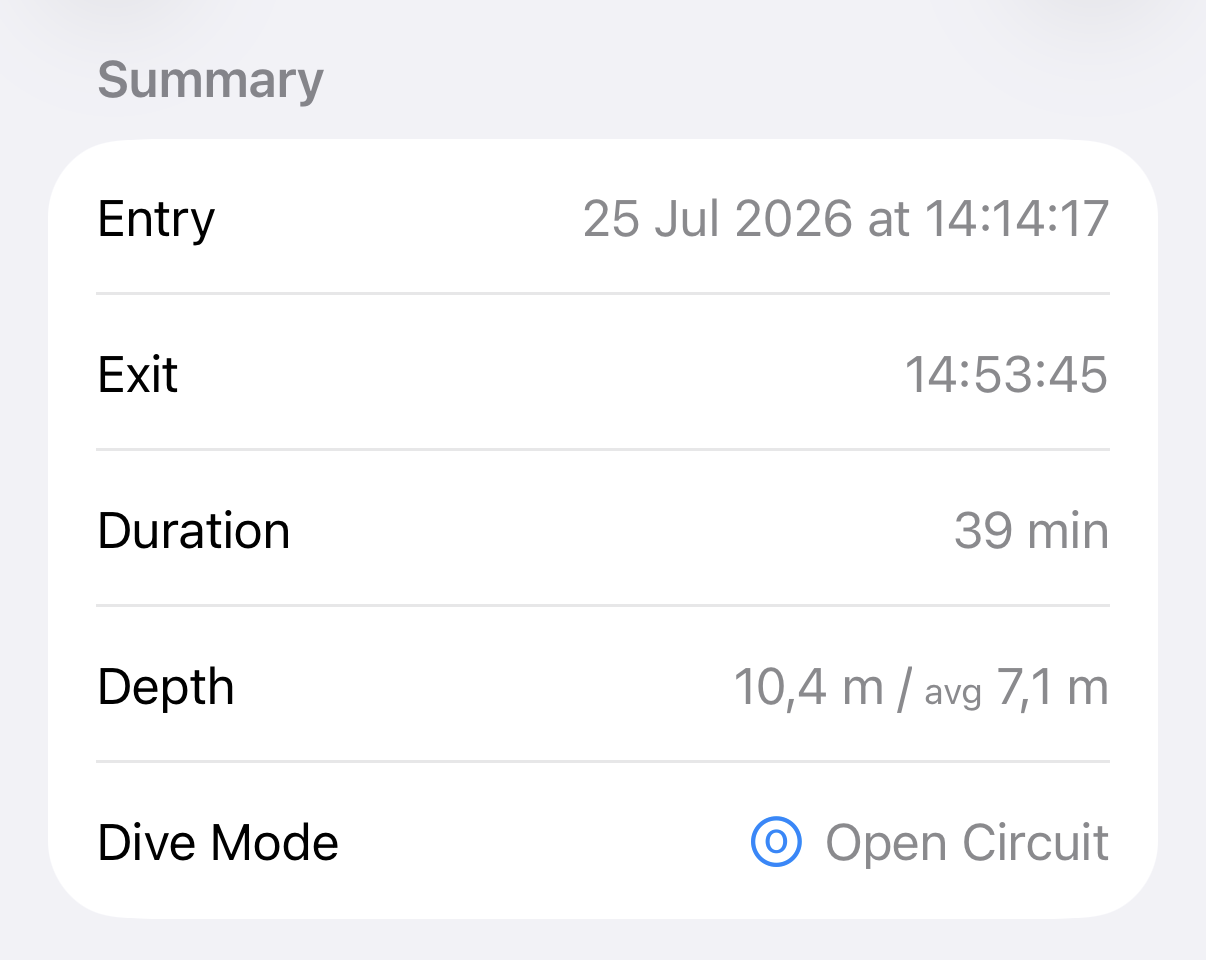
The summary section shows the key facts about your dive:
- Entry — Date and time the dive started
- Exit — Date and time the dive ended
- Timezone — GMT offset recorded by the dive computer
- Duration — Total dive time
- Depth — Max depth, followed by the average depth when it is available
- Dive Mode — The type of dive performed
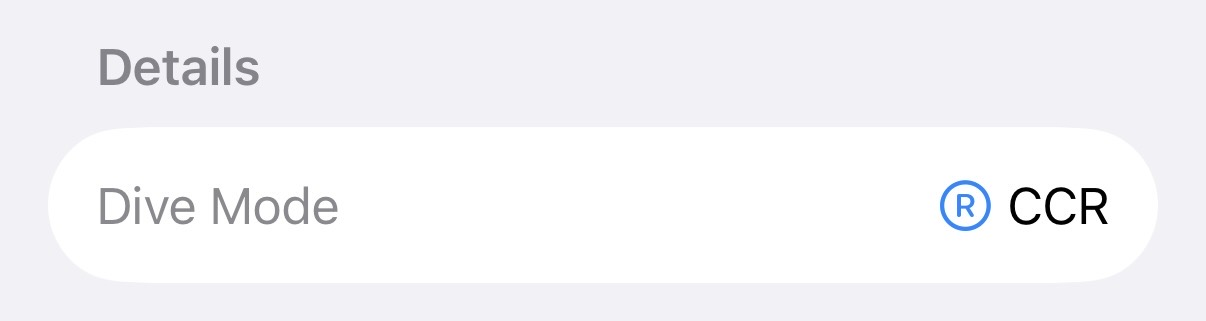
The dive mode is one of:
- Open Circuit (OC)
- Closed-Circuit Rebreather (CCR)
- Semi-Closed Rebreather (SCR)
- Gauge
- Freedive
Location
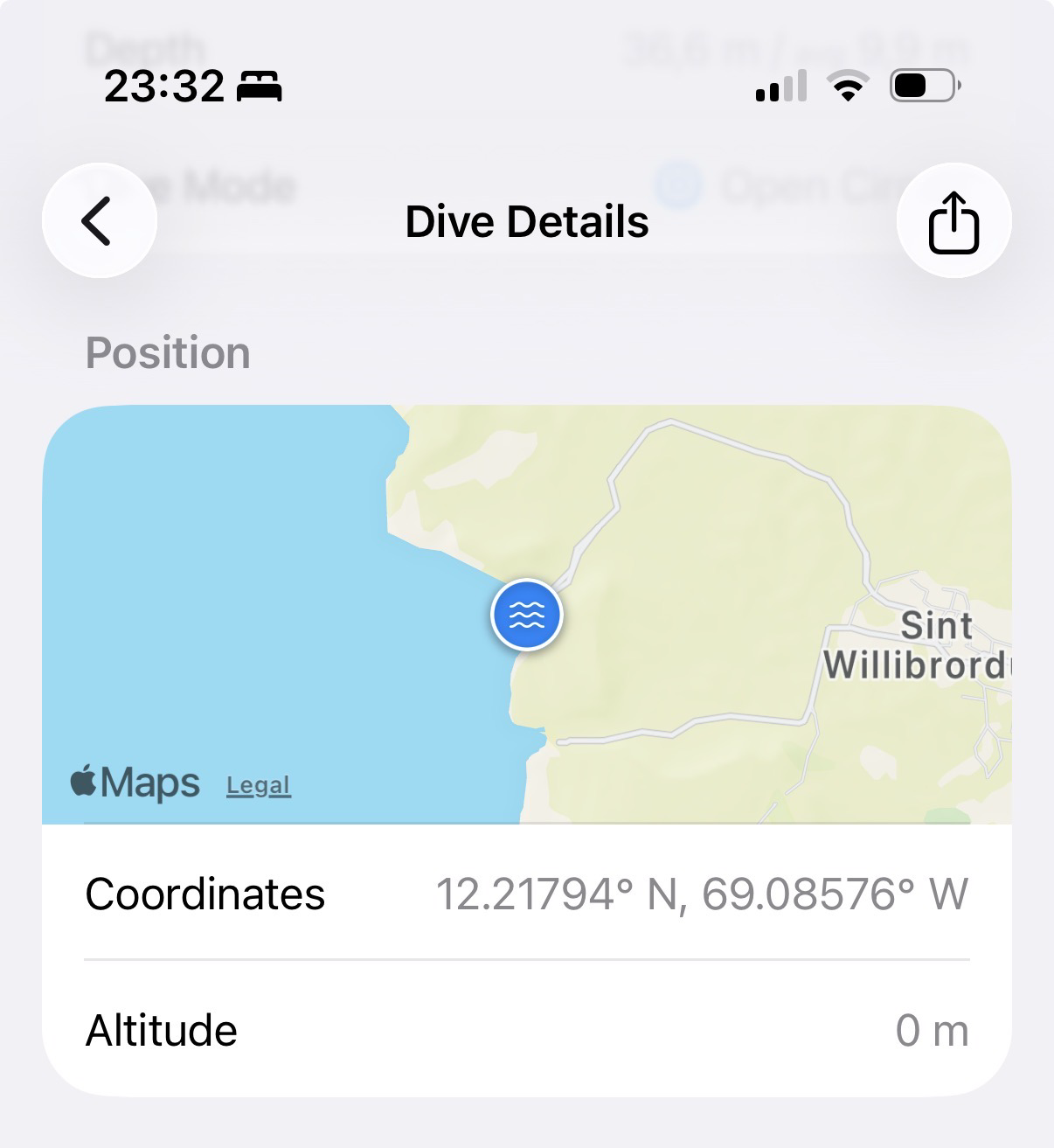
If your dive computer records GPS data, this section shows where the dive took place.
The section opens with a map of the dive position. Tap the map to open the position in Apple Maps. Below it:
- Coordinates — Latitude and longitude. Tap the row to copy the pair to the clipboard.
- Altitude — Elevation of the dive site, when the dive computer records it.
Long press the map or the coordinates to get Copy Coordinates and Open in Maps.
Profile
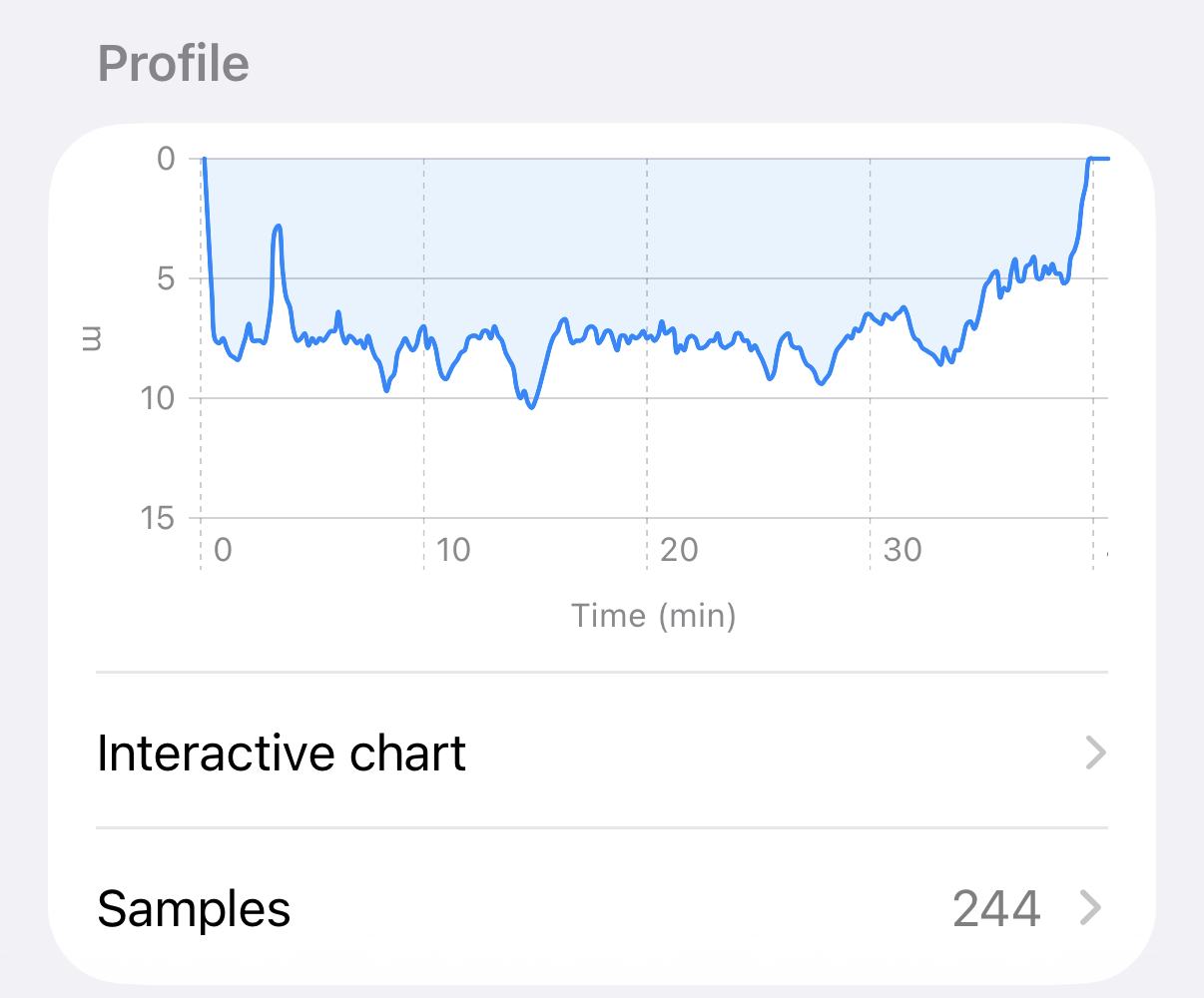
The profile section opens with a preview of the dive profile, which plots depth against elapsed time. The preview is a picture only, and it answers no tap or drag.
Below the preview are two rows:
- Interactive chart — Opens the dive profile chart
- Samples — Opens the sample list, with the sample count on the right
Interactive chart
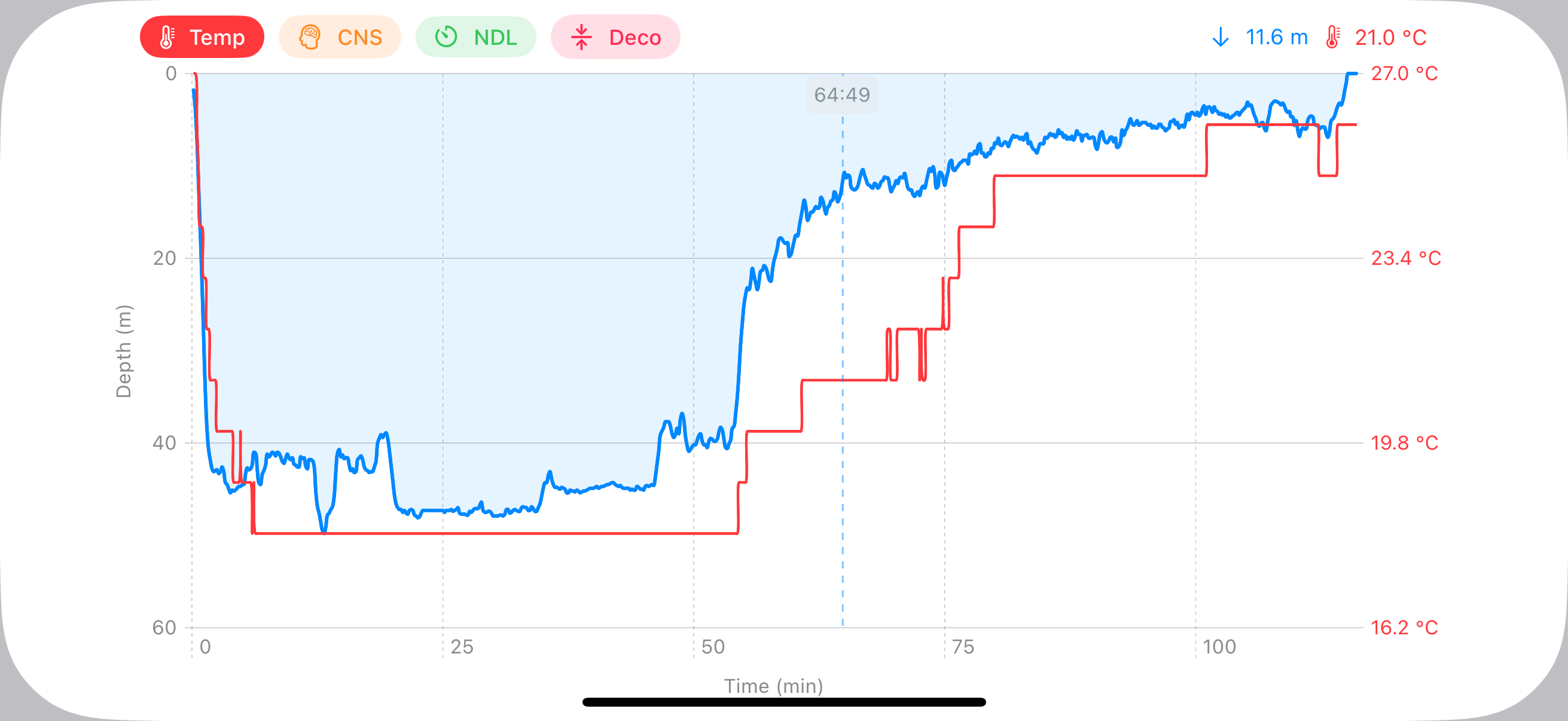
Tap Interactive chart to open the dive profile chart. The chart plots depth over time as a blue area curve, with the X-axis showing elapsed time in minutes and the Y-axis showing depth.
In portrait the chart takes a box at the top of the sheet and the readout sits below it. Before you drag, the readout shows the deepest sample of the dive.
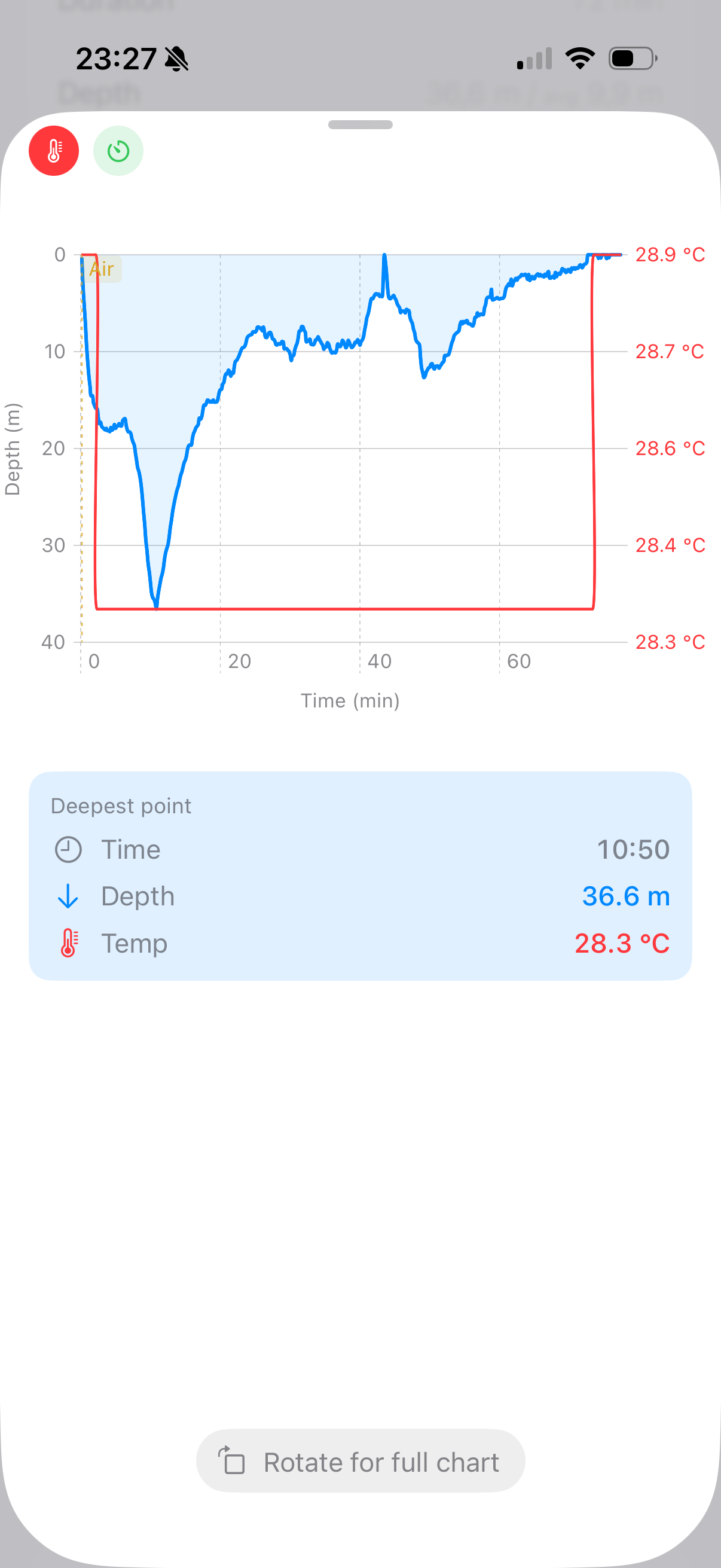
You can toggle additional data overlays using the buttons at the top of the chart:
- Temp — Water temperature throughout the dive, shown as a red line
- CNS — Central Nervous System oxygen toxicity percentage
- PPO₂ — Partial pressure of oxygen
- NDL — No-Decompression Limit remaining (in minutes). Drops to zero when decompression is required.
- Deco — Decompression stop depth, shown as shaded rectangles when the dive enters decompression
When an overlay is active, its values appear on the secondary axis on the right side of the chart.
Tap and drag across the chart to inspect individual data points. A vertical marker shows the exact time, and the selected values are displayed in the readout.
Rotate your device to landscape for a full-width view of the chart with expanded controls and labels.
Samples
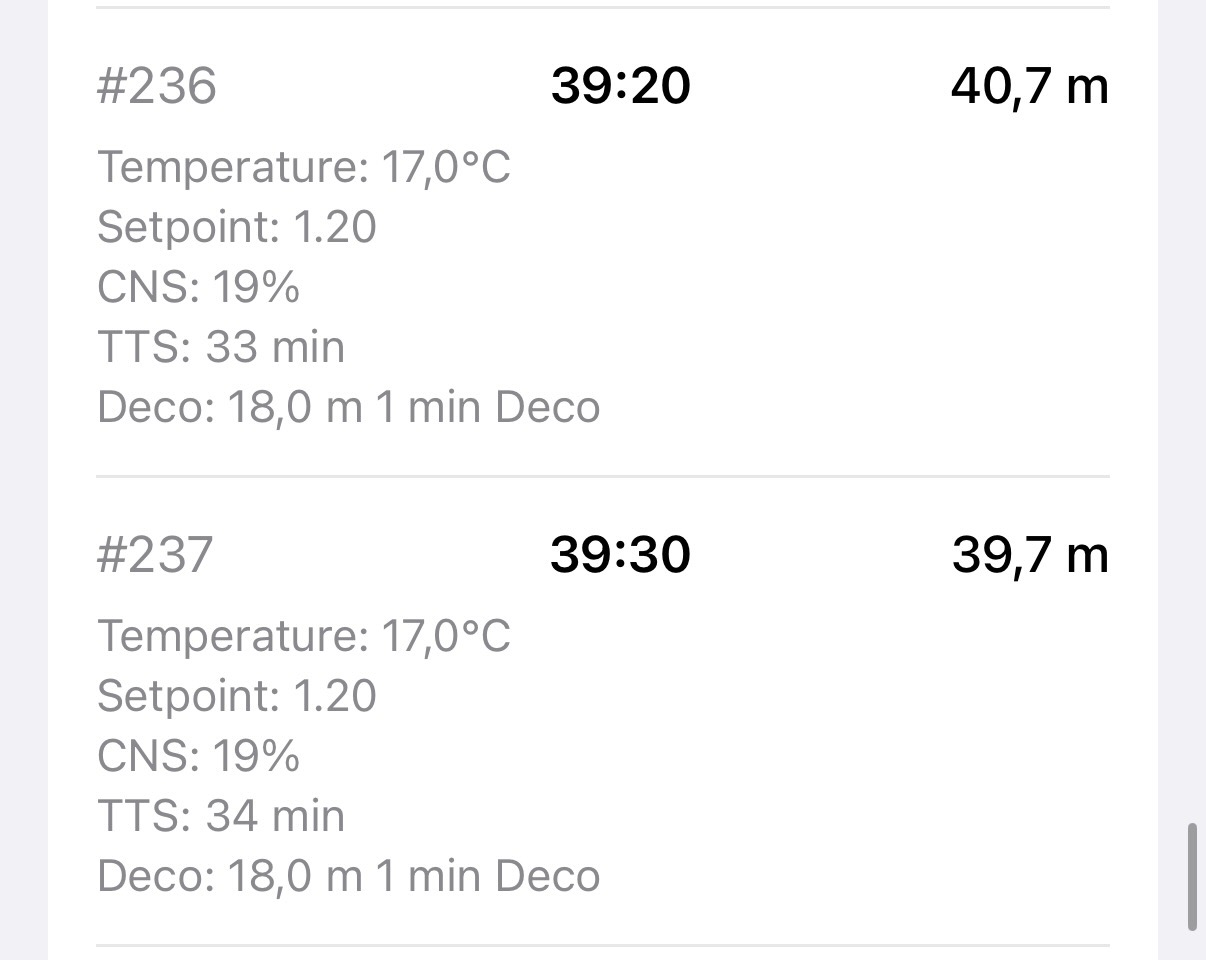
Tap Samples to view the full dive profile. Each sample includes data points such as:
- Time offset and depth
- Temperature and tank pressure
- Remaining Bottom Time (RBT)
- Heart rate and compass bearing (if supported)
- PPO2 and CNS oxygen toxicity percentage
- NDL (No-Decompression Limit) or TTS (Time To Surface)
- Deco stop information (depth and time)
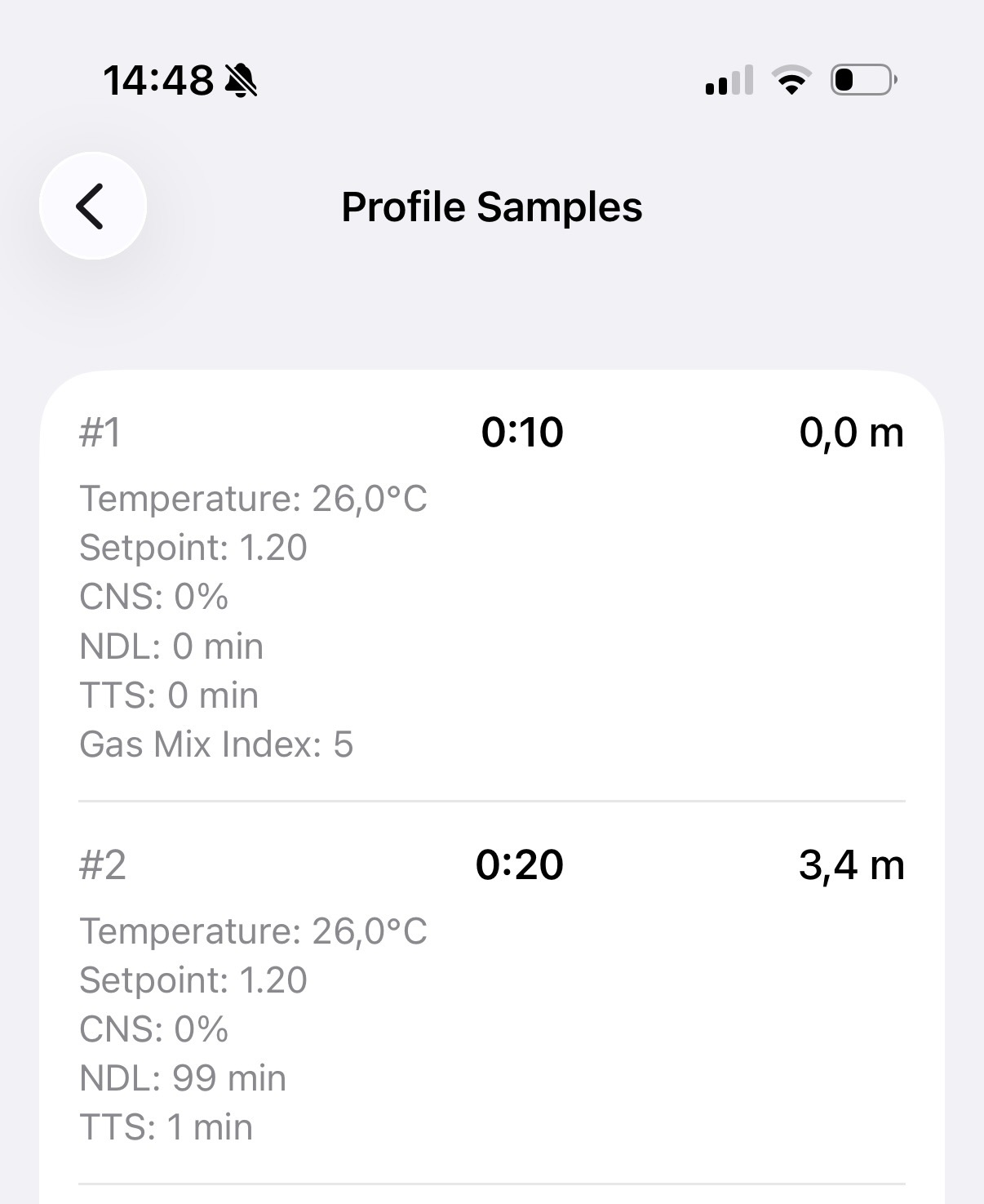
During decompression dives, samples also show deco stop depth and time.
Conditions
The conditions section shows the water and the air around the dive:
- Surface Temp — Water temperature at the surface
- Bottom Temp — Lowest water temperature recorded during the dive
- Air Temp — Surface reading from the dive computer, which measures air rather than water
- Surface Pressure — Atmospheric pressure at the surface
- Salinity — Fresh water or salt water, with density if available
When your dive computer reports no surface or bottom temperature, the app reads both from the dive profile.
Gases
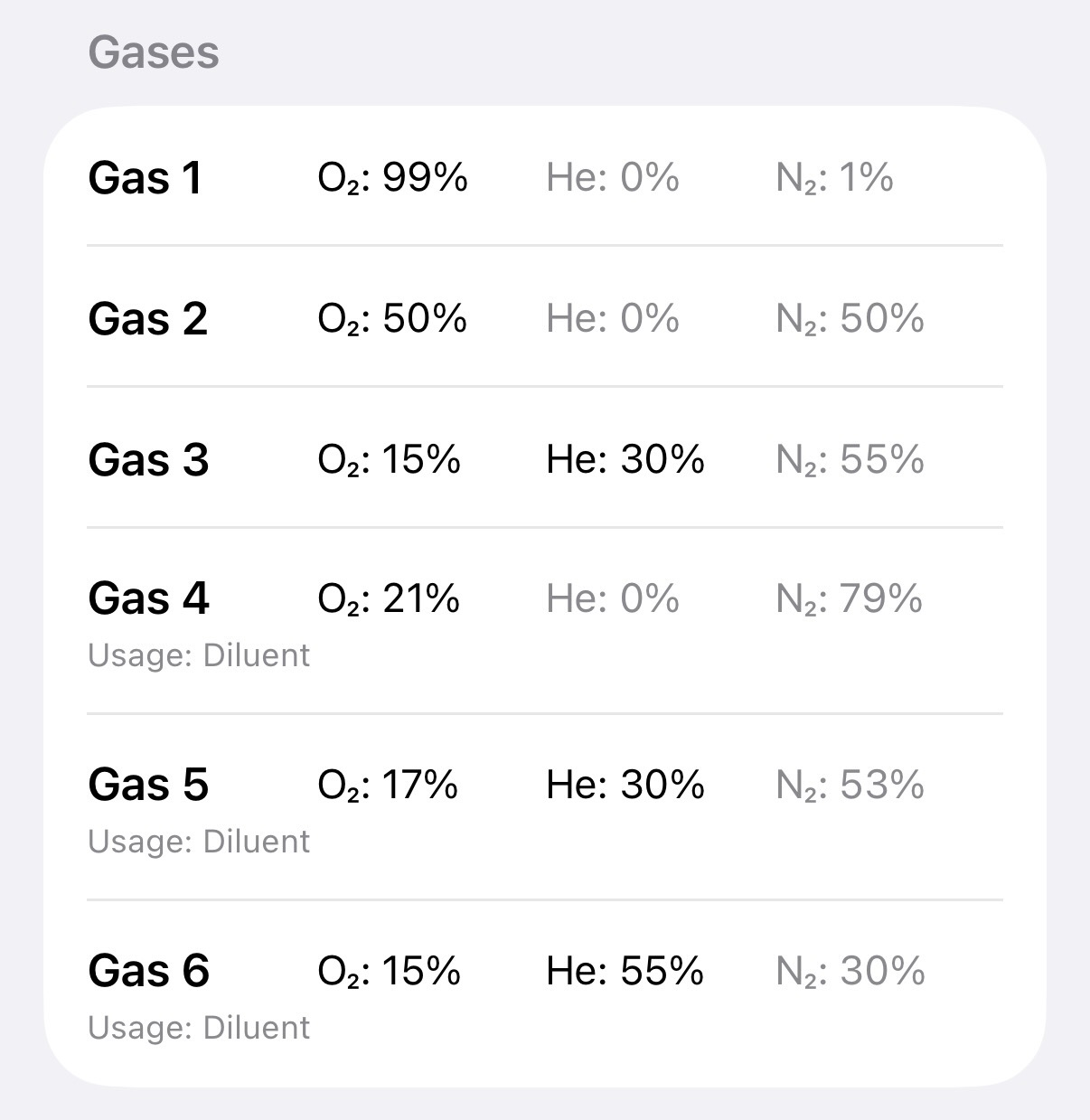
Lists all gas mixes used during the dive. For each gas:
- O2 — Oxygen percentage
- He — Helium percentage (for trimix)
- N2 — Nitrogen percentage
- Usage — How the gas was used (e.g., bottom gas, deco, diluent, bailout)
Tanks
Each tank is one row. The first line gives the tank number, its volume and working pressure, and the gas mix it carries.
When the dive computer records both a start and an end pressure, a bar below the first line runs from the pressure at the start of the dive on the left to the pressure at the end on the right. The colored part of the bar is the gas that remains, and the gray part is the gas you used. The color of the bar follows the pressure at the end of the dive:
- Blue — 50 bar or more
- Orange — Between 20 bar and 50 bar
- Red — Below 20 bar
When the dive computer records only one of the two pressures, the row shows it as Start Pressure or End Pressure instead of the bar.
Decompression
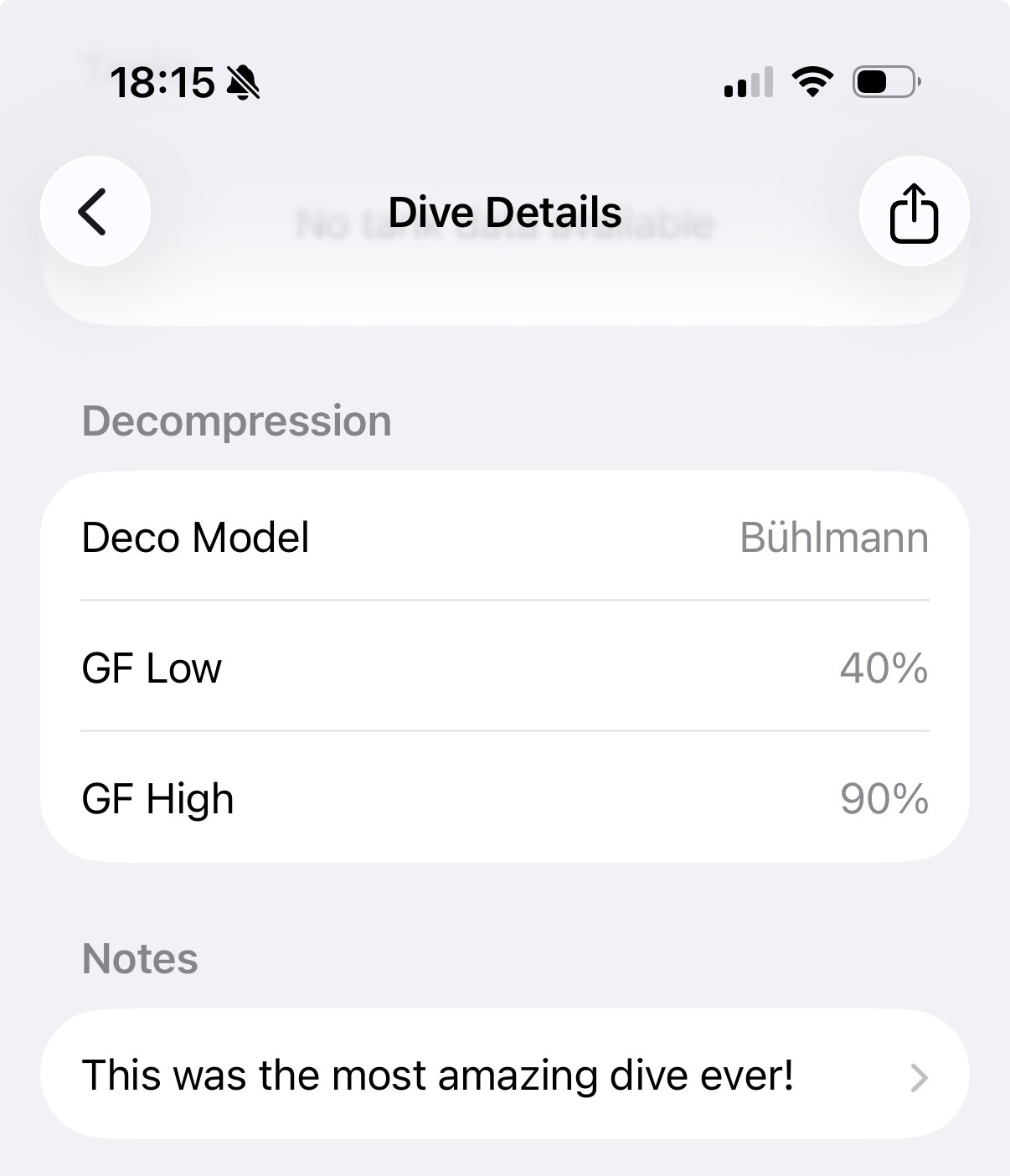
If your dive computer records decompression model settings:
- Deco Model — Buhlmann, VPM, RGBM, DCIEM, or none
- Gradient Factors — The low and high values on one row, written as
20/85(for Buhlmann). The row appears only when the dive computer reports both values. - Conservatism — Level setting (for VPM)
Notes
The Notes section lets you add your own text to a dive, such as conditions, marine life, or anything else worth recording. It shows your saved note, or an empty field when no note has been added yet.
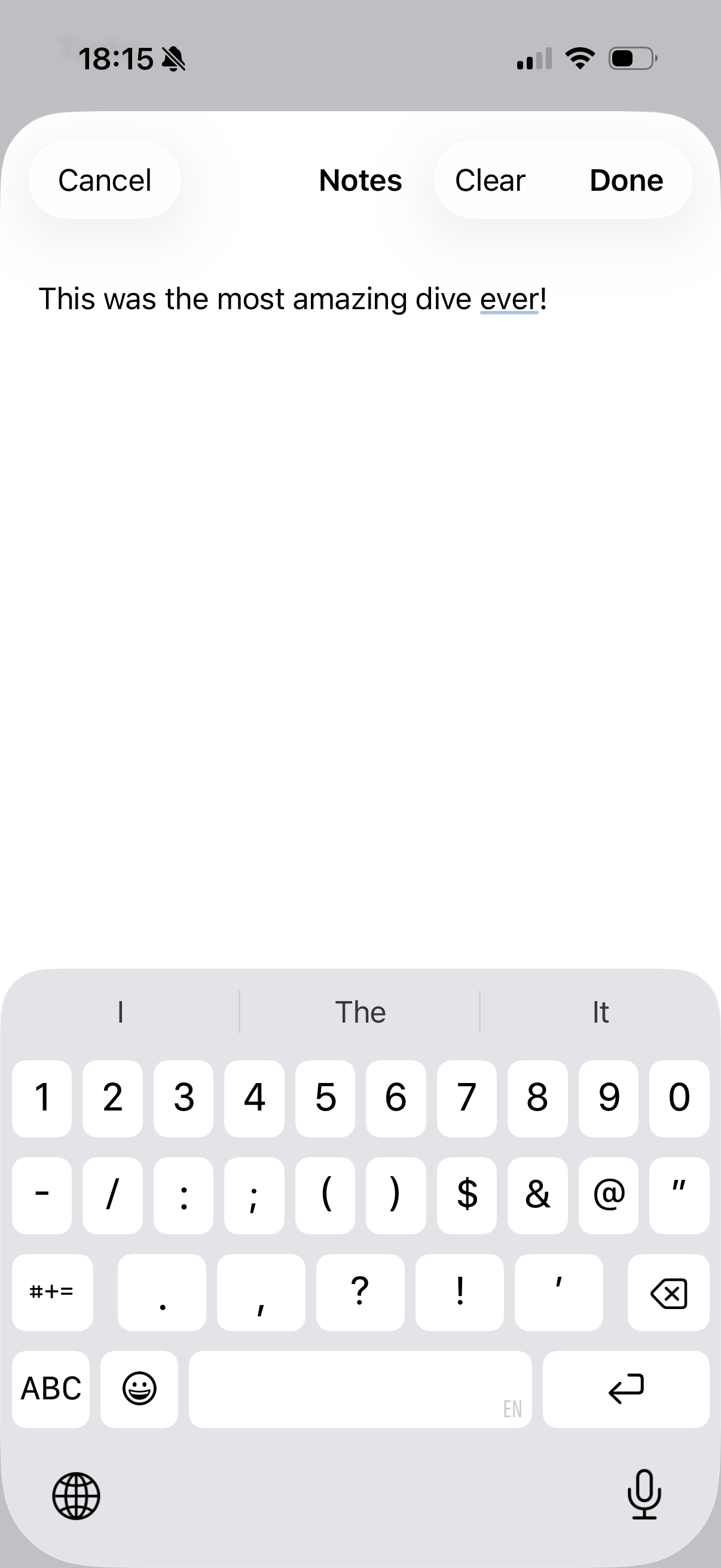
Tap the note to open the editor, type your note, then tap Done to save it. Clear removes the text, and Cancel discards your changes.
Your notes are included when you export the dive as UDDF, so they travel with your dive data to the logbook of your choice.
Device
The last section shows which dive computer recorded the dive:
- Device name, vendor, and model
- Serial number and firmware version